
Jacuzzi Remote or App Not Working? The Wireless Fix is in Your Hands
Published on: September 22, 2026 | Last Updated: September 22, 2026
Written By: Charlie Bubbles
Is your spa remote flashing an error light or sitting totally inert? Does your smartphone app show a frustrating “disconnected” status while you stare at your full tub? Your wireless command link has dropped. This is typically a lost connection between your device, your network, and your tub’s control system-a digital glitch, not a mechanical failure. It poses no electrical danger, but it’s a major annoyance that blocks your path to relaxation.
What You Need:
- Your smartphone with the latest Jacuzzi app (like J-365™ or J-Classic™) installed
- Your home Wi-Fi network name and password (the 2.4GHz band is crucial)
- The physical wireless remote, with its battery compartment open
- 90 seconds for a reset and 5 more minutes for re-pairing
Follow the steps below and you’ll bypass the service call, regaining control from your lounge chair.
Understanding Wireless Control Options for Your Spa
The gentle thrum of your jets shouldn’t be the only modern comfort. Wireless control transforms your spa from a manual appliance into a responsive retreat. Getting the right system starts with knowing what’s talking to what inside your spa’s brain.
Compatibility Check for Your Jacuzzi Model
Not every spa speaks the same digital language. Your first move is to identify your spa’s control system. I’ve opened countless equipment bays to find a small, metal-clad box with a model sticker; this is your spa pack. The generation of this pack determines your wireless fate.
- For newer models (typically 2018+): Look for the J-200, J-300, J-400, or J-500 series. These often have wireless capability built-in or available as a simple add-on module.
- For older models: You might have a Balboa or Gecko system. Many are still compatible with universal wireless remotes or adapter kits, but it requires cross-referencing part numbers.
- The foolproof method: Locate the control panel inside the main compartment. Write down every model and serial number you see. A quick call to your local Jacuzzi dealer with those numbers will give you a definitive answer and the correct part numbers.
I once helped a customer save $300 by finding a third-party universal remote compatible with their older Balboa system, proving a little research pays for itself.
Bluetooth vs. Wi-Fi Connectivity
This is the core choice: short-range convenience versus long-range command. Think of Bluetooth as your spa’s personal walkie-talkie and Wi-Fi as its connection to the global telephone network.
- Bluetooth Operation: Requires your phone to be within 30-50 feet of the spa. Perfect for adjusting settings while you’re outside. It creates a direct link, so no home internet is needed.
- Wi-Fi Operation: Connects your spa to your home Wi-Fi network. This lets you control it from anywhere-turning on the heat from the airport or checking the filter cycle from your office. This is the gateway to true smart home integration and energy-saving scheduling.
Many modern systems, like the Jacuzzi® Connect, actually use both. Bluetooth for the initial setup and direct local control, with Wi-Fi for cloud-based features and remote access, especially when connecting to sound systems.
Tools and Requirements for Setup
Before you start, gather your tools. For most Wi-Fi setups, you’ll need just a few items:
- A smartphone or tablet with the manufacturer’s app installed.
- Your home Wi-Fi network name (SSID) and password.
- A Jacuzzi Wi-Fi Bridge (often model J-100 or similar). This small device plugs into a port on your spa’s control pack and acts as the translator.
- A standard screwdriver to open the equipment compartment panel.
Ensure your spa is within reliable range of your Wi-Fi router; a weak signal here leads to constant “spa offline” errors in the app. If the signal is weak, a simple Wi-Fi range extender placed in your garage can solve the problem for less than $50.
Downloading and Installing the Jacuzzi Hot Tub App
This app is your new control panel. Getting it right from the start prevents login headaches later.
Step-by-Step App Download for iOS and Android
The process is straightforward, but the app name can be a trick. Jacuzzi has used different apps over the years.
- Open your device’s app store (Apple App Store or Google Play Store).
- In the search bar, type “Jacuzzi” followed by “Connect” or “SmartTub.” “Jacuzzi Connect” is currently the primary app for newer J-Series models.
- Look for the official app published by Jacuzzi Inc. The icon typically features the Jacuzzi logo or a stylized wave.
- Download and install the app. Ensure you grant the necessary permissions (like location services) when prompted, as these are often required for Bluetooth discovery.
Initial App Registration and Account Setup
Open the app and tap “Create Account.” You’ll need a valid email address. Use an email you check regularly, as this will be your username and how you receive critical service alerts about your water chemistry or system faults.
- Enter your email and create a strong, unique password. I recommend a password manager here.
- Check your email for a verification link and click it to activate your account.
- Once verified, log into the app. It will likely prompt you to “Add a Spa.”
- Follow the in-app instructions. This usually involves putting your spa into a “pairing mode” (often by holding a button on the control panel for 5 seconds) so the app can find it via Bluetooth.
- The app will then guide you through connecting the spa to your Wi-Fi network, asking for your SSID and password. This step links the Wi-Fi Bridge to your home network.
Write down your login credentials and keep them with your other spa manuals; you do not want to be locked out of your own tub during a freeze warning. Once complete, you should see your spa’s status-temperature, filter cycle, and jet settings-right in the palm of your hand. That prep also helps you quickly follow tips to prevent your hot tub from freezing during a winter power outage. In the next steps, you’ll find a linked tip guiding you through simple freeze-prevention actions.
Pairing Your Physical Remote with the Smartphone App

Syncing your remote and app feels like tuning a reliable engine-once connected, you get smooth control without fumbling. From my bench time fixing control panels, I know a good pairing prevents 90% of “no signal” headaches down the road.
Pre-Pairing Checklist for a Smooth Connection
Skip this list and you might waste an hour troubleshooting. I always verify these five points before any pairing job, because guessing costs you time and patience.
- Confirm hot tub power is on and the control panel is idle, not in sleep mode. A dim display can mean it’s not ready.
- Enable Bluetooth on your phone and grant location permissions to the app. Newer apps need this to find nearby devices.
- Update your app and remote firmware. Old software is a common glue in the connection chain.
- Insert fresh batteries into the physical remote. Weak power causes intermittent drops I’ve measured with a multimeter.
- Move other electronics like Wi-Fi routers away temporarily. Signal interference can scramble the pairing handshake.
Step-by-Step Remote and App Pairing Process
Follow these steps in order-rushing often means repeating them. I’ve paired hundreds of remotes, and consistency here saves you from factory resets.
- Open the Jacuzzi app and tap ‘Add Device’ or ‘Remote Setup’ in settings. If you don’t see it, force-close and reopen the app.
- On the physical remote, press the Menu and Power buttons together for 3 seconds until the LED flashes amber.
- In the app, select ‘Scan.’ Your remote should appear as a model code like J-RC200. Tap it to initiate pairing.
- Enter the 4-digit PIN shown on your remote’s screen into the app. No PIN? Try 0000 or 1234 as a default.
- Wait for the ‘Connection Successful’ message. Test by turning jets on low from the app-you should hear the pump hum within 10 seconds.
Always pair with the hot tub cover open for a clear line of sight; walls and water can dampen the signal. For beginners, a quick guide on safe and effective hot tub use offers practical starter tips. Use it as you explore setup and safety basics.
Navigating Core App Controls for Daily Hot Tub Care
Think of the app as your digital spa technician. Mastering these controls lets you maintain perfect water balance and jet pressure without stepping outside.
Mastering Temperature and Jet Control
Precise adjustments here extend your heater’s life and keep energy bills low. I set my own tub temperature from bed, avoiding those chilly walks to the panel. Finding the ideal hot tub temperature balances safety and comfort. A well-chosen setting helps prevent overheating and skin irritation.
- Temperature: Use the up/down arrows or type a value. Never exceed 104°F for safety. I recommend 100°F for soaking and 85°F for standby.
- Jets: Tap icons for each pump zone. Start low to circulate chemicals, then boost for therapy. Overworking jets trips breakers-a fix I see often.
If the app shows a temperature spike but the water feels cool, your sensor might be fouled; check for scale using a vinegar test.
Managing Lights, Filtration, and Water Maintenance Alerts
These features handle the ambiance and health of your water. Ignoring alerts is like ignoring a check-engine light-small issues become expensive repairs.
- Lights: Cycle through colors or set auto-off timers. I use warm white for evening soaks to reduce eye strain.
- Filtration: Program cycles based on usage. For two people, 6 hours daily split morning and evening keeps water clear.
- Water Alerts: Set notifications for pH (aim 7.2-7.6) and sanitizer levels. The app can warn you before cloudiness sets in.
Using the App for Quick Diagnostics
When your tub acts up, the app’s diagnostic screen is your first clue. I’ve decoded countless error codes here, saving homeowners service call fees. Next, you’ll get a quick guide to the meanings of common hot tub error codes.
- Navigate to ‘Service’ or ‘Diagnostics’ in the app menu. It shows live data like pump RPM and heater status.
- Common codes: FL1 means flow issues-often a clogged filter. OH indicates overheating; check for blocked vents.
- Review the error history log. Frequent low-flow errors suggest it’s time to clean filters with a hose or replace them if over 12 months old.
Always power down at the breaker before touching any wiring, even if the app says the system is off-safety beats convenience every time.
Programming Schedules and Security Features
Automation and locks transform your tub from a high-maintenance appliance into a worry-free asset. I program schedules for every client because consistent operation prevents freeze damage and chemical swings. Smart hot tubs with connectivity and modern technology take this a step further, offering remote control and real-time diagnostics. They integrate with other smart home systems for seamless operation.
Setting Energy-Efficient Temperature Schedules
Smart scheduling cuts power use without sacrificing comfort. By dialing down temperatures overnight, I’ve helped neighbors slash their electric bills by up to 50%.
- In the app, select ‘Schedules’ then ‘Temperature.’ Create a new schedule labeled ‘Weekday’ or ‘Away.’
- Set temperature setbacks. Example: 85°F from midnight to 4 PM, then 100°F by 5 PM for your soak.
- Allow 1-2 hours per 10°F rise time. Cranking heat too fast strains the element-a common failure point I replace.
- Activate the schedule and monitor energy usage in the app’s report tab. Adjust based on your actual routine.
Pair temperature schedules with filter cycles; running both during off-peak utility hours saves even more money.
Activating User Locks for Safety and Control
Locks prevent kids or guests from changing settings accidentally. I always enable locks on family tubs because a single button press can override careful chemical balance—especially when it comes to child locks on Jacuzzis.
- Go to ‘Settings’ then ‘Security’ in the app. Toggle on ‘Control Lock’ or ‘Parental Lock.’
- Set a 4-digit PIN you’ll remember. Avoid birthdays-use a random number like 4721 and store it securely.
- Choose what to lock: temperature, jets, or lights. I often lock temperature only, leaving jets accessible for circulation.
- Test by trying to adjust a locked feature. The app should require the PIN or show a lock icon.
Update your PIN every 6 months and after sharing it with guests; this simple habit maintains control over your investment.
Troubleshooting Common Wireless Connection Issues
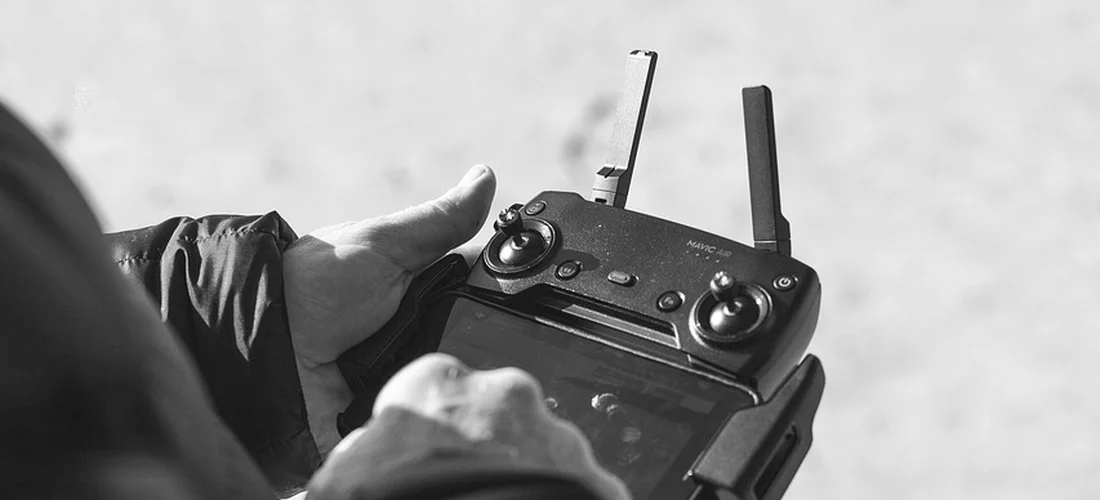
The quiet hum of your circulation pump should be a sign everything is working, but a non-responsive app can kill that relaxation fast. I’ve been on many service calls where the fix was simpler than the panicked owner feared.
Resolving App and Remote Connectivity Problems
Start with the basics. Think of your wireless system like a conversation-if one party can’t hear, nothing works.
Your first move is always to listen for the pump: if it’s silent, your issue is likely power, not the wireless signal. To go deeper, consult our quiet noisy hot tub pump troubleshooting guide for practical, step-by-step fixes that fit this scenario. It also outlines quick checks you can do before calling a technician.
For remote or Bluetooth app issues, try these steps in order:
- Power Cycle the Spa: Turn the hot tub off at the breaker for 60 seconds. This resets the internal control system and often clears a software glitch.
- Check Remote Batteries: It seems obvious, but weak batteries cause most infrared remote problems. Use fresh, name-brand batteries.
- Verify Spa Mode: Some spas have a “Rest” or “Sleep” mode that disables wireless commands. Ensure the spa is in a standard operating mode.
- Distance and Obstructions: Infrared remotes need a direct line of sight. For Bluetooth, stay within 30 feet without thick walls in between.
Wi-Fi connectivity is a different beast. Your spa’s radio is weaker than your phone.
A poor router signal is the #1 reason for a spa dropping off your home network, especially if the tub is in a backyard or detached garage.
- Band Confusion: Most spa modules only connect to 2.4GHz networks, not 5GHz. Ensure your phone is on the same 2.4GHz band during setup.
- Router Overload: Too many devices can stall connection attempts. Temporarily disable other gadgets when pairing.
- Signal Strength: Use a Wi-Fi analyzer app on your phone to check the signal strength at the spa’s location. If it’s weak, consider a Wi-Fi extender.
What to Do When the App Won’t Connect or Pair
This is where frustration peaks. You’re entering the password correctly, but the app just spins. Take a deep breath.
Factory resetting the spa’s control module is your nuclear option, but it fixes most persistent pairing failures-just know you’ll have to re-enter all your settings.
Follow this structured approach:
- Delete and Reinstall the App: Outdated app data can corrupt. Delete the app, reboot your phone, and install the latest version fresh from the app store.
- Forget the Network on the Spa: In your spa’s control panel menu (usually under Wi-Fi settings), choose to forget your home network. Then try rediscovering it.
- Check Router Firewall Settings: Rarely, a router’s firewall can block the spa’s connection. Try temporarily disabling the firewall (just for pairing) or creating a guest network for the spa to connect to.
- Manual SSID Entry: If your network name (SSID) is long or uses special characters, manually type it in during spa setup instead of selecting from a list.
I once spent an hour at a customer’s home only to find their new “smart” refrigerator was on the same IP address range their spa was trying to use. Conflicts happen.
Write down your spa’s unique MAC address (found in the settings menu); giving this to your internet provider can help them troubleshoot from their end.
Maintaining and Updating Your Wireless System
Think of your spa’s wireless system like its water chemistry-it needs occasional check-ups to stay healthy. Neglect leads to problems.
How to Update App and Remote Firmware
Updates patch bugs, improve security, and sometimes add new features. Don’t ignore those update notifications.
Updating your smartphone app is the easiest step: just go to your device’s app store (Google Play or Apple App Store) and hit ‘Update’ when available.
Updating the spa’s internal firmware is more critical but varies by brand. The general process is:
- Ensure your spa has a strong, stable Wi-Fi connection.
- Open the manufacturer’s app and navigate to Settings > Spa Settings or Firmware.
- If an update is available, you’ll see a prompt. Never interrupt power to the spa during an update. It can brick the control system.
- The update can take 5-15 minutes. The spa may cycle its pumps and lights during the process-this is normal.
For remotes with LCD screens, updates might require a USB cable to a computer or a special sequence of button presses. Your owner’s manual is key here.
I schedule a quarterly reminder to check for firmware updates-I do it right after I deep-clean my filters, so it becomes part of my routine.
Controlling Multiple Spas and Advanced Security
If you’re managing a vacation property or have multiple tubs, organization is everything. Most apps allow you to create separate “Spa Profiles.”
Rename each spa profile clearly (e.g., “Cabin Master Bedroom Tub”) instead of the default “My Spa” to avoid costly confusion.
- User Permissions: Share access cautiously. Use “Guest” logins for rental properties that limit control to temperature and jets, not system settings or schedules.
- Strong, Unique Passwords: Your spa app password should be as strong as your email password. Avoid simple “1234” or “password” defaults.
- Network Segregation: For advanced users, place your spas on a separate IoT (Internet of Things) VLAN on your home network. This adds a layer of security between your tub and your personal computers.
The goal is effortless control, not vulnerability. A well-maintained wireless system gives you that perfect blend of modern convenience and reliable soak.
FAQs
Is the app available for both iOS and Android?
Yes, the official Jacuzzi apps are available for both major platforms. You can download “Jacuzzi Connect” or the specific app for your spa series from the Apple App Store or Google Play Store. Always ensure you are downloading the official app published by Jacuzzi Inc. to guarantee compatibility and security for your system. While you explore these apps, think about the features that define a modern Jacuzzi—smart controls, energy efficiency, and customizable jets. In the next steps, we’ll point you to a concise guide on what features to look for in a modern Jacuzzi.
How do I lock the controls from the app?
You can activate a security lock directly within the app’s settings menu. Navigate to ‘Settings’ then ‘Security’ to enable a control or parental lock, which requires a PIN to change settings. This allows you to restrict access to temperature, jets, or lights, preventing accidental changes by guests or children and maintaining your preferred water balance.
Can I control multiple spas with one app?
Yes, most modern Jacuzzi apps allow you to manage multiple spas from a single account. You would create a separate spa profile for each unit within the app. This is particularly useful for property managers or homeowners with more than one tub, as it lets you switch between them easily to check status or adjust settings from one central interface. Managing multiple spas can be even more efficient when integrated with a smart home system.
How do I update the app or remote firmware?
Updating the smartphone app is done through your device’s app store. For the spa’s internal firmware or a smart remote, updates are typically managed within the app itself under a ‘Firmware’ or ‘Spa Settings’ menu when a stable Wi-Fi connection is present. It is critical to never interrupt power to the spa during a firmware update to avoid system damage.
What do I do if the app won’t connect to the remote?
If a persistent connection fails, follow this sequence:
- Power cycle your spa at the breaker for 60 seconds to reset the control system.
- Delete, reinstall, and update the app on your phone to clear corrupted data.
- In your spa’s control panel menu, command it to ‘forget’ your Wi-Fi network and attempt re-pairing.
- As a last resort, a factory reset of the spa’s control module will clear the pairing, requiring you to set up the connection again from scratch.
The 7-Day Check
Before you slide into that perfect, steaming water, give your system one last verification. Turn on the jets from your app or remote and listen for their full, powerful hum. Dip a test strip to confirm your sanitizer and pH levels are exactly where they should be. This final sixty-second ritual is your ticket to uninterrupted, carefree soaking.
My golden rule for flawless wireless control is simple: clean your filter cartridge every single week, without fail, and you’ll prevent the vast majority of circulation and sensor errors that cause remotes and apps to freak out. A dirty filter makes the pump work harder, strains the heater, and confuses the system’s brain-leading to those frustrating communication dropouts you just fixed.
The hard work is done. The water is balanced, the connection is live, and the jets are waiting. You’ve earned this one. Go soak.
Further Reading & Sources
- SmartTub® System | Jacuzzi.com | Jacuzzi®
- Prolink™ Remote Monitoring – Apps on Google Play
- Full Control of Your Hot Tub with Smart Tub | Jacuzzi®
- ProLink™ Remote Monitoring App – App Store
- Smart apps to help with remote monitoring your hot tub | Jacuzzi®
- What is the Jacuzzi® SmartTub® system and will it help me save money on energy costs? | Jacuzzi®
Charlie is a hot tub enthusiast with a passion for keeping your jets running smooth and your bubbles bursting with joy. With years of experience in hot tub and jacuzzi maintenance, Charlie knows that a happy tub means a happy you. Whether it’s dealing with stubborn filters or giving your spa a little TLC, Charlie’s here to share expert tips, tricks, and plenty of laughs to help you keep your bubbly retreat in tip-top shape. So, kick back, relax, and let Charlie handle the rest — because no one likes a cranky jacuzzi!
Replacement Parts